
- Data Repair
- Data Recovery
-
Tips
-
 Hard Drive Recovery
-
Photo/Video Restoration
-
 Deleted Files Recovery
- Guide
- Support
- Shop
-
Search
- Store


 User Guide
 Video Tutorial
How to Perform iPhone Photo Recovery After an iOS 27 Update or Downgrade

Lost photos during an iOS 27 software update or system downgrade? When files disappear, iOS marks the memory space as "unallocated," but the raw data remains temporarily recoverable. By using professional read-only iPhone data recovery software like AnyRecover, you can scan and extract lost photos directly from your device memory without overwriting current data or needing a full backup.
Table of Contents
Why Photos Disappear During an iOS 27 Update or Downgrade
Major system transitions—such as upgrading to iOS 27 or rolling back to a previous iOS version—involve deep modifications to your device's system partition and file allocation table.
During these operations, several issues can cause photo loss:
Corrupted File Indexes: The system fails to remap the file directory properly, making existing photos invisible to the Photos app.
Interrupted Downgrades: Reverting system architecture often requires erasing system cache and user databases, resulting in missing media libraries.
Storage Allocation Errors: Low device storage during an update can lead to incomplete data writing or corrupted SQLite databases.
When photos go missing, the actual image bytes usually remain intact within your iPhone's NAND flash storage until new media overwrites them. Therefore, performing ios 27 data recovery as quickly as possible is critical to achieving a high recovery success rate.
Methods for iOS 27 Photo Recovery
Before running deep system recovery scans, start with native iOS checks, then move to dedicated direct memory scanning.
Method 1: Check Native iOS Recovery Options
Open the Photos app and navigate to utilities > Recently Deleted. Check if missing items are within the 30-day window.
Log in to iCloud.com on a web browser and check if your photos exist in the cloud library without forcing a full restore on your device.
Method 2: Deep Device Scan with AnyRecover (No Backup Required)
If native options fail or you lack a recent backup, traditional iTunes or iCloud restores will force a complete device wipe, causing irreversible data overwrites.
AnyRecover iPhone Data Recovery offers an alternative approach. It operates in a read-only mode, scanning unallocated sectors of your iPhone's internal memory to rebuild lost JPEG, HEIC, and PNG files safely without modifying your active system files.

AnyRecover Key features include:
- It provides a click-based interface to quickly scan, preview, and recover deleted files without backup or jailbreak.
- It can recover deleted files from multiple common data loss scenarios, such as accidental deletion, factory reset, iOS error, etc.
- It conducts a deep scan to extract all the deleted files, including photos, videos, audio, documents, messages, and plenty of other data types.
- It supports all the latest and old iPhone models, including iPhone 15 and iOS 18.
- It supports preview-based selective recovery after scanning.
- It can extract selective backed-up files from iCloud/iTunes backups.
- It provides the highest recovery rate of 99.7%.
Step-by-Step: How to Recover Lost Photos Using AnyRecover
Follow this 3-step guide to perform selective iPhone photo recovery on iOS 27 devices:
Step 1. Download and launch AnyRecover for iOS on your computer and select iPhone Recovery mode. Also, connect your iPhone to the computer and click Next once the tool recognizes your iPhone.

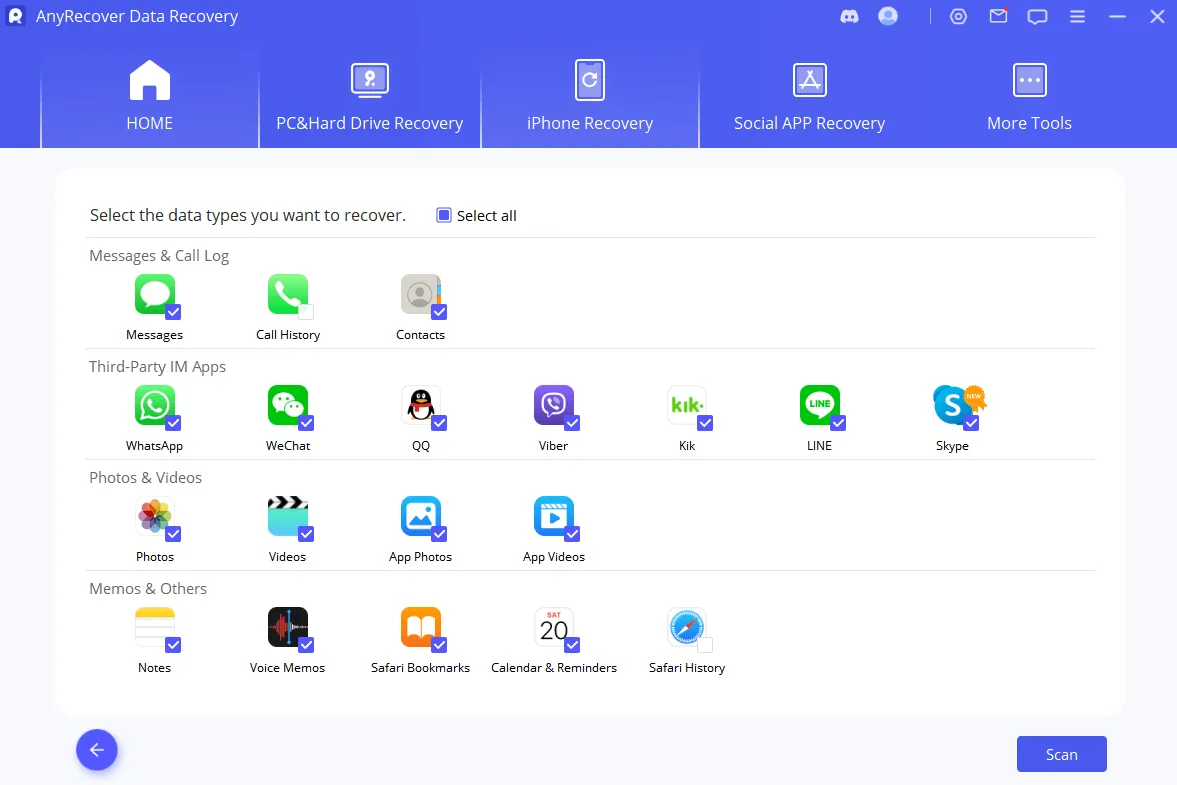
Step 2.Pick the data types you intend to recover and click Scan.
Step 3. After scanning, preview and select the data you want to recover. You can even use the search field or filters to look for specific files. Once done, click Restore to Device or Recover to Computer.
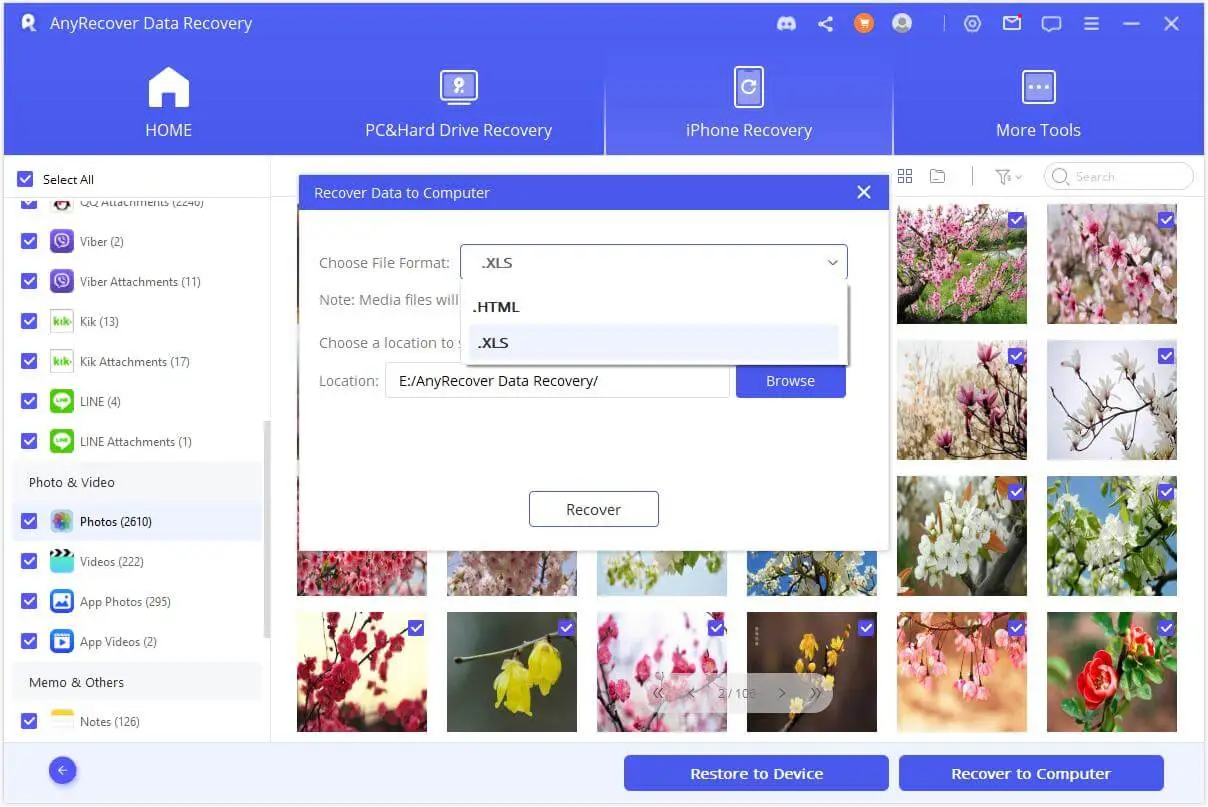
That's it! So, a quick three-step process of AnyRecover for iOS can let you easily recover permanently deleted files on your iPhone.
 Tip
Tip
For the highest recovery success rate, stop using your iPhone immediately after noticing missing photos. Any new data written to the device's storage can permanently overwrite the unallocated sectors where your lost photos reside.
Frequently Asked Questions
 Can I recover photos after an iOS 27 downgrade if I don't have an iCloud backup?
Yes. An iOS downgrade clears system references, but the underlying photo data stays in the unallocated storage space until overwritten. Specialized tools like AnyRecover can perform an iPhone photo recovery scan directly on the physical storage to extract lost media without requiring a prior backup.
Will recovering photos with AnyRecover overwrite my existing iPhone data?
No. AnyRecover uses a non-destructive, read-only scanning algorithm. It extracts lost files to your computer without erasing, modifying, or overwriting the existing content on your iOS 27 device.
What should I do immediately after losing photos on iOS 27?
To maximize your chances of ios 27 data recovery:
Enable Airplane Mode immediately to prevent background app activity.
Avoid taking new photos, downloading apps, or receiving large files.
Run a data recovery scan on your computer as soon as possible.
Don't Let New Data Overwrite Your Lost Memories
Every second matters after an iOS 27 update or downgrade failure. The longer you use your device, the higher the risk that system processes overwrite your unallocated photo files permanently.
Stop using your phone, run a quick read-only scan with AnyRecover iPhone Data Recovery, and preview your recoverable photos for free before they are gone forever.
Try AnyRecover Free & Scan Your iOS 27 Device Now
Recover lost photos, videos, messages, and more — no backup required.
AnyRecover-Your iOS Data Recovery Expert
All-in-one data recovery software supports iOS 27 photo recovery directly from device memory — no backup needed. Read-only scanning ensures your existing data stays untouched.


Rated successfully!

You have already rated this article, please do not repeat scoring!












Copyright © 2026 AnyRecover. All rights reserved.
Time Limited Offer
for All Products
Not valid with other discount *